

Calendar and reservations
Calendar
Section titled “Calendar”Filters
When you click on the filters icon, you will see a bar on the left where you can filter the list of cars in the calendar using individual parameters.
Clicking on the Favorites icon will show only the cars marked as favorites.
The full-text search engine in the top bar responds to all the information and components stored in the car detail.
Explanatory Notes
- The reservations you have created are displayed in green.
- If you have a booking for a departure, it will be displayed in blue.
- Other reservations are displayed in grey.
- Substitute reservations are displayed in yellow.
Creating a Reservation
Section titled “Creating a Reservation”LOCAL/DRIVE
Remember that a valid license plate number and a driving order are required when you drive your car.Reservation Date
To create a reservation longer than one day, use the LONG TERM checkbox.Time Slots
Please check the time slots for the reservation here. To create a Substitute booking, check the box below, and select a time from the available slots marked in red.Guests
Add users who will be attending your booking here. Users will be notified by email and will see the reservation in their account both on the Dashboard and on the calendar.Remote Access
When booking a testbench with remote capabilities, you’ll be able to access it remotely during your reservation time. A Connect button will appear in your dashboard and on the testbench page when your reservation is active. See Remote Sessions for detailed instructions.Notes
A field for additional notes on the booking.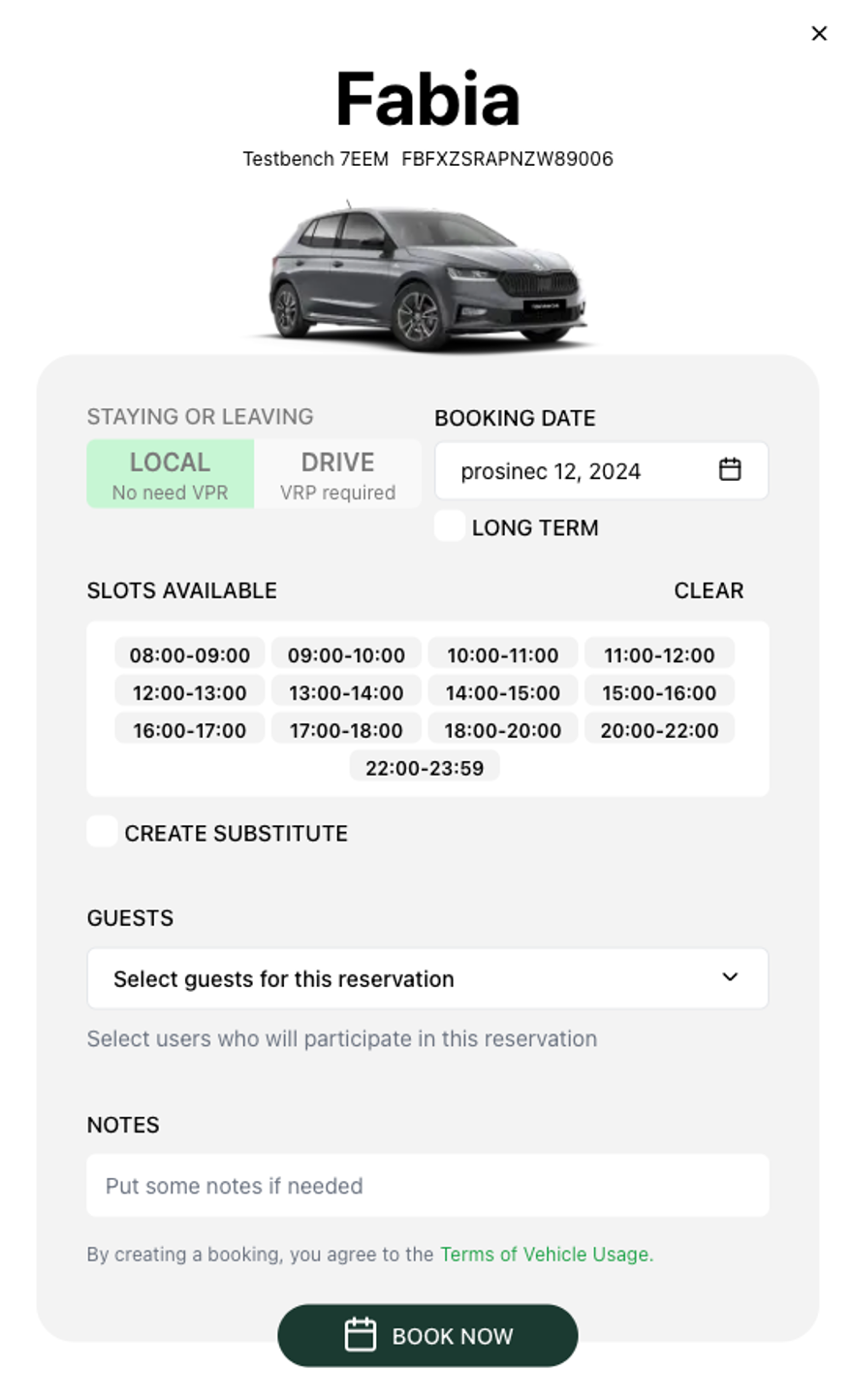
Calendar Views and Limits
Section titled “Calendar Views and Limits”The calendar can show different amounts of time depending on your role.
- Regular users can view up to one month at a time. This is enough to plan day-to-day bookings and see who is using a car in the coming weeks.
- Fleet managers and admins can switch to wider 3-month and 6-month views. These are useful for spotting long-term availability, planning campaigns, and coordinating cars across departments.
Reservation detail vs. heatmap overview
Section titled “Reservation detail vs. heatmap overview”In the wide views, the calendar shows reservation detail by default so you can still read individual bookings across the longer time range.
Managers can also switch on an optional heatmap overview. The heatmap replaces per-booking detail with a colour-coded density view, making it easy to see at a glance which cars are heavily booked and which have free capacity. The heatmap is a manager-only toggle and is off unless you turn it on.
Transfer Markers
Section titled “Transfer Markers”When a car is scheduled to move between departments, the calendar highlights this directly on the car’s row so you never book a car that is about to leave or has not yet arrived.
- Departure marker — shown when a car in your department is scheduled to move to another department. You cannot create bookings that run past this scheduled departure.
- Arrival marker — shown when a car is scheduled to arrive into your department from elsewhere. The period before the arrival date is locked, because the car is not yet available to you.
These markers make cross-department moves visible in your normal planning view, so transfers and reservations stay in sync.
Advance Booking
Section titled “Advance Booking”You can plan ahead for cars that are on their way to you.
- You can book an incoming car from its handover (arrival) date forward, even before it physically arrives, so its first days in your department are ready to go.
- You cannot book a car past its scheduled departure to another department.
This lets teams reserve a car for the moment it becomes available without waiting for the physical handover. For the complete rules on how cars move between departments and pools, see Transfers and Pool.