

Remote Sessions
The TestHub platform allows you to access and control testbenches remotely through your web browser. This feature enables you to work with testbenches from anywhere without requiring physical presence in the lab.
What are Remote Sessions?
Section titled “What are Remote Sessions?”Remote sessions provide real-time access to testbenches through a secure connection directly from your web browser. This means you can:
- View the testbench’s screen in real-time
- Control the testbench using your keyboard and mouse
- Listen to audio from the testbench (when enabled)
- Work with the same software and tools as if you were physically at the testbench
Requirements for Remote Sessions
Section titled “Requirements for Remote Sessions”To use remote sessions, you need:
- A valid reservation: You must have booked the testbench for the current time
- Authorization: Your account must have permission to connect to testbenches
- A modern web browser: For the best experience, use the latest version of Chrome, Firefox, or Edge
- A stable internet connection: For smooth operation of the remote session
No special software installation is required - everything runs in your web browser!
How to Connect to a Testbench
Section titled “How to Connect to a Testbench”-
Book a testbench: First, you need to make a reservation for a testbench in the calendar
-
Wait for your reservation time: The Connect button will only appear when your reservation is active
-
Access the testbench: There are two ways to connect:
- From the Dashboard: Find your reservation under “Upcoming Reservations” and click the “Connect” button when it appears
- From the Testbench Page: Navigate to the testbench and click the “Connect” button at the top of the page
-
Automatic connection: The system will verify your authorization and connect you to the testbench
-
Start working: Once connected, you can interact with the testbench just like you would in person
Using the Remote Session Controls
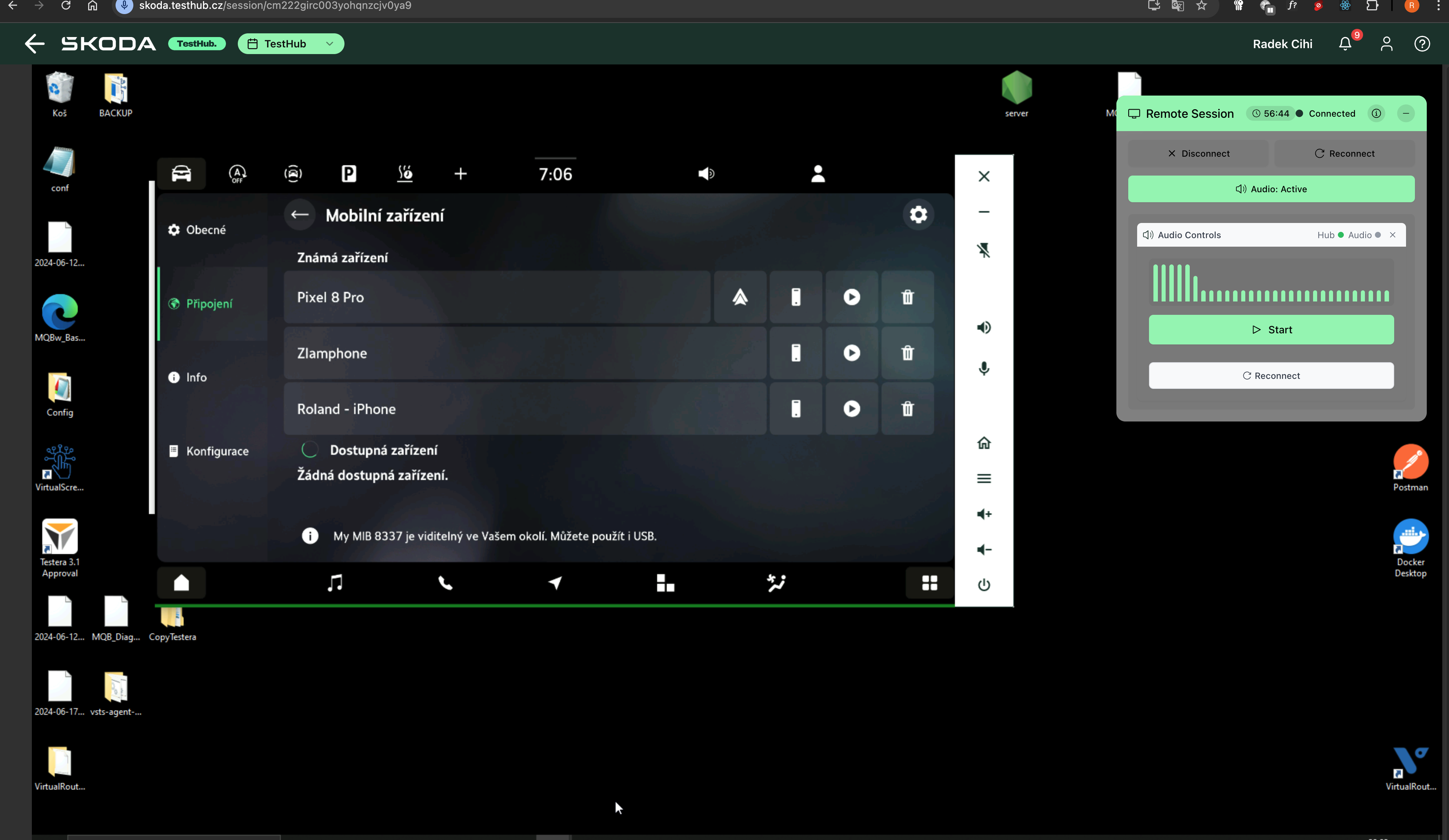
Section titled “Using the Remote Session Controls”When connected to a testbench, you’ll see a control panel at the top of the screen:
Connection Status
Section titled “Connection Status”The status indicator shows whether you are:
- Connecting: The system is establishing a connection
- Connected: You are successfully connected and can control the testbench
- Disconnected: Your connection has been lost or ended
Control Buttons
Section titled “Control Buttons”- Disconnect: Click to end your remote session
- Reconnect: If you experience connection issues, click to reestablish the connection
- Audio Toggle (if enabled): Turn testbench audio on or off
- Minimize: Collapse the control panel to maximize your workspace
Session Timer
Section titled “Session Timer”The control panel displays a countdown timer showing how much time remains in your reservation. The session will automatically disconnect when your reservation ends.
Feature Indicators
Section titled “Feature Indicators”Some testbenches have special features indicated by icons in the control panel:
- Audio 🔊: This testbench supports audio streaming
- Multi-Relay 🔌: Remote control access to CL15 and CL30 controls
- High Resolution 📺: Full HD 1920×1080 high-quality display
Click the information (i) icon to see which features are enabled for your session.
Best Practices for Remote Sessions
Section titled “Best Practices for Remote Sessions”For the best remote session experience:
- Plan ahead: Book your testbench in advance to ensure availability
- Be on time: Connect promptly at the start of your reservation
- Close unused applications: Close other applications that might compete for bandwidth
- Stable connection: Use a wired internet connection if possible for better stability
- Session length: Plan your work to fit within your reservation time
- Save your work: Regularly save your work in case of unexpected disconnections
Troubleshooting
Section titled “Troubleshooting”If you experience issues with your remote session:
-
Connection problems:
- Try clicking the “Reconnect” button
- Check your internet connection
- Refresh the page and reconnect
-
No Connect button:
- Verify your reservation is active (check the calendar)
- Make sure you’re logged in with the account that made the reservation
- Contact support if you believe there’s an error
-
Performance issues:
- Close other browser tabs and applications
- Try using a different browser
- Connect from a computer with better specifications if possible
-
Audio not working:
- Check if the testbench supports audio (look for the audio icon)
- Ensure your browser has permission to play audio
- Check your system volume settings
If you continue to experience issues, please contact the TestHub support team for assistance.
Security and Privacy
Section titled “Security and Privacy”Remote sessions are secured with encryption and authentication measures:
- Only authorized users with valid reservations can connect
- Sessions automatically terminate when your reservation ends
- All connections are authenticated and encrypted
- Activity during sessions may be logged for security purposes
Questions and Support
Section titled “Questions and Support”If you have questions about remote sessions or need assistance:
- Check this documentation for answers
- Contact your department’s TestHub administrator
- Submit a support ticket through the TestHub platform